
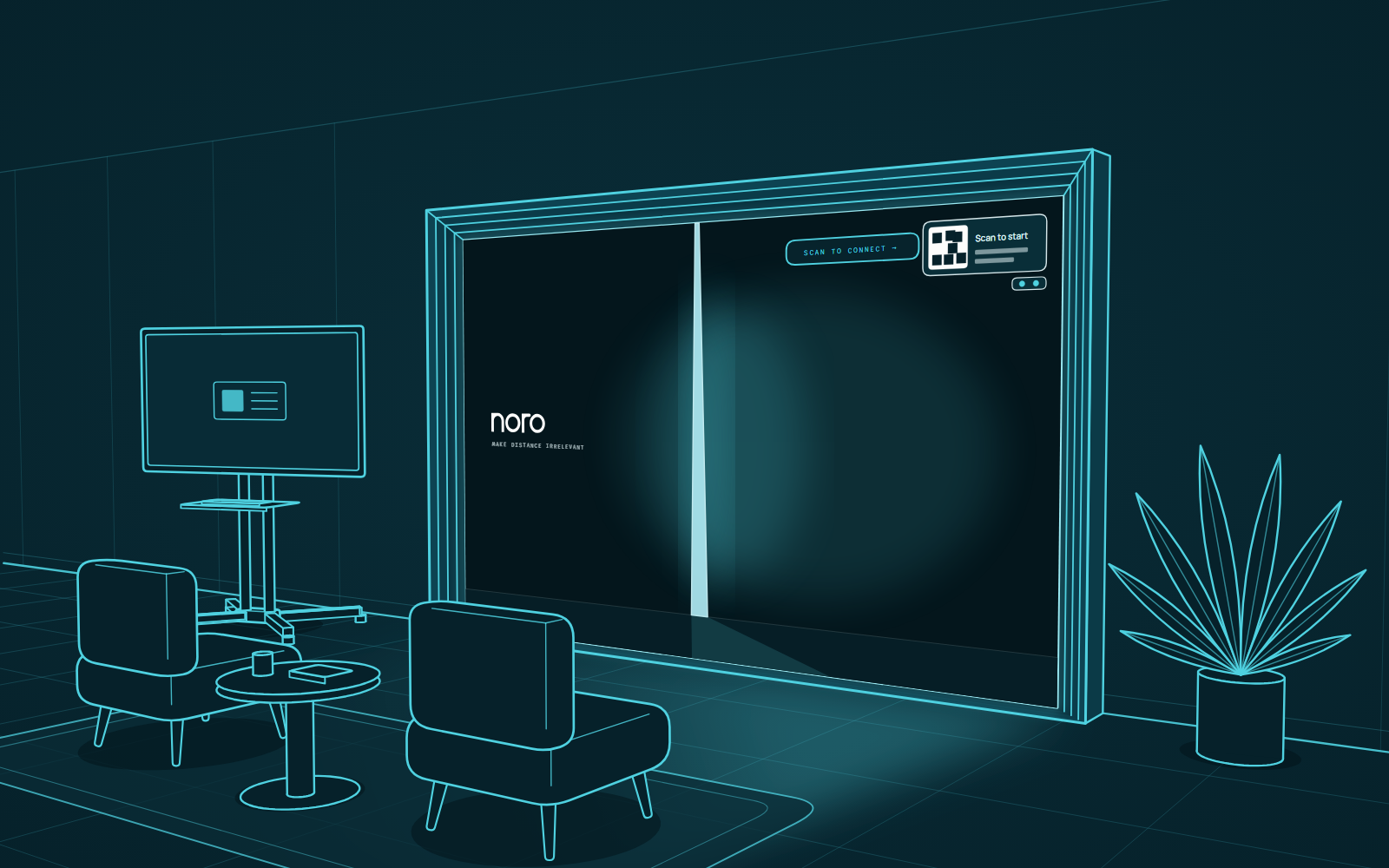
This update is about making the portal yours. Put your own image or video on the wall between calls, and try the early preview of passkey sign-in, which asks who you are before you take control of a portal. Zoom calls also pick up the whiteboard and phone camera casting.
Your content on the wall between calls
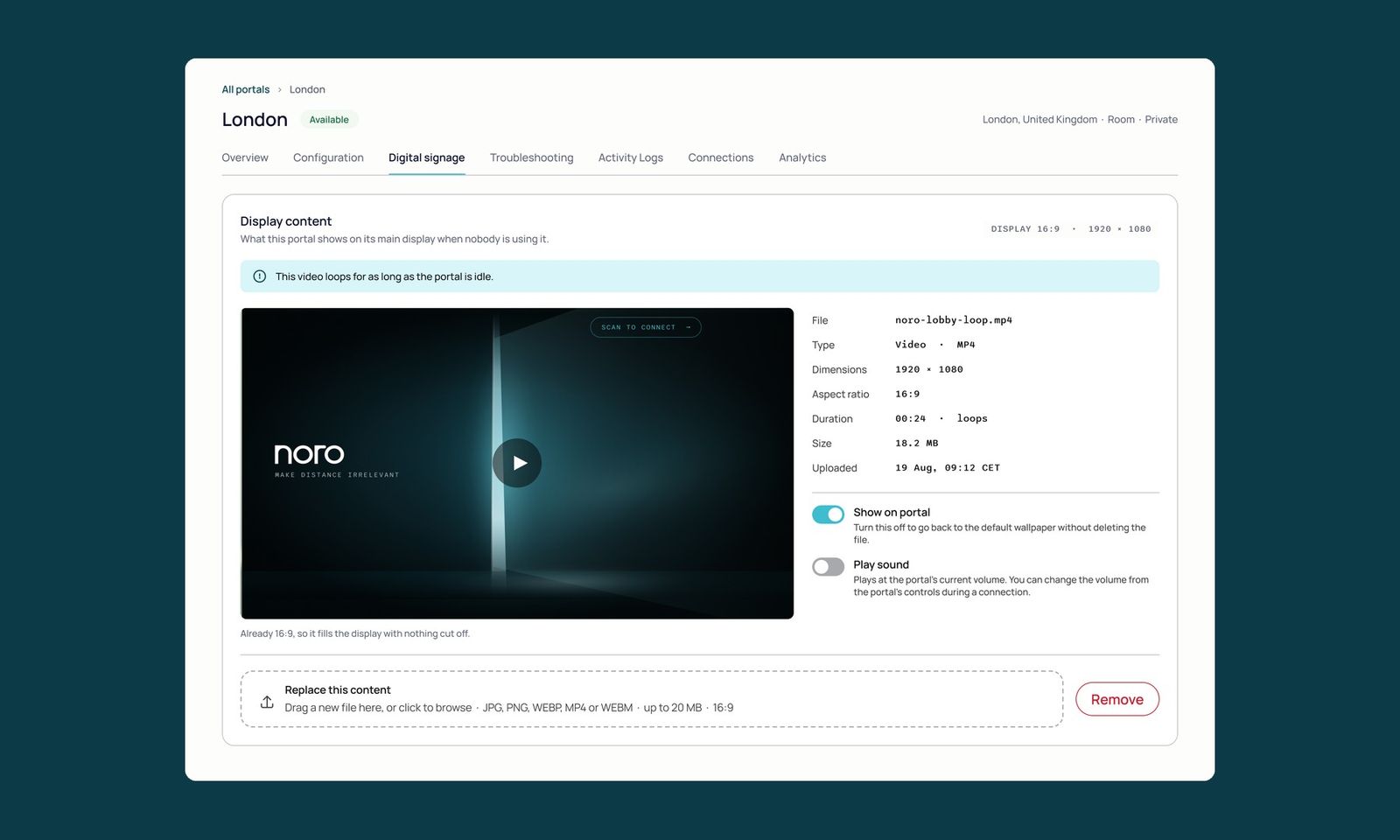
A portal that isn't in a call no longer has to show the standard wallpaper. Upload an image or a video for a portal in Admin, switch it on, and the wall shows it whenever the portal is idle and its screen is on.
The preview in Admin has the same proportions as the portal’s display, so what you see is what the room sees. If your file has different proportions, Admin tells you how much of it will be cropped and where. Images can be JPG, PNG or WEBP, and videos MP4, WEBM or MOV.
- A video can play with or without sound.
- When nobody has been in the room for a while, the wall goes dark. The video starts again from the beginning when someone walks in.
- If a file can't be played, the portal goes back to its usual wallpaper.
You can also give someone access to signage and nothing else. They see the list of portals and the signage tab, without organization settings, users or connections.
Sign in with a passkey (preview)
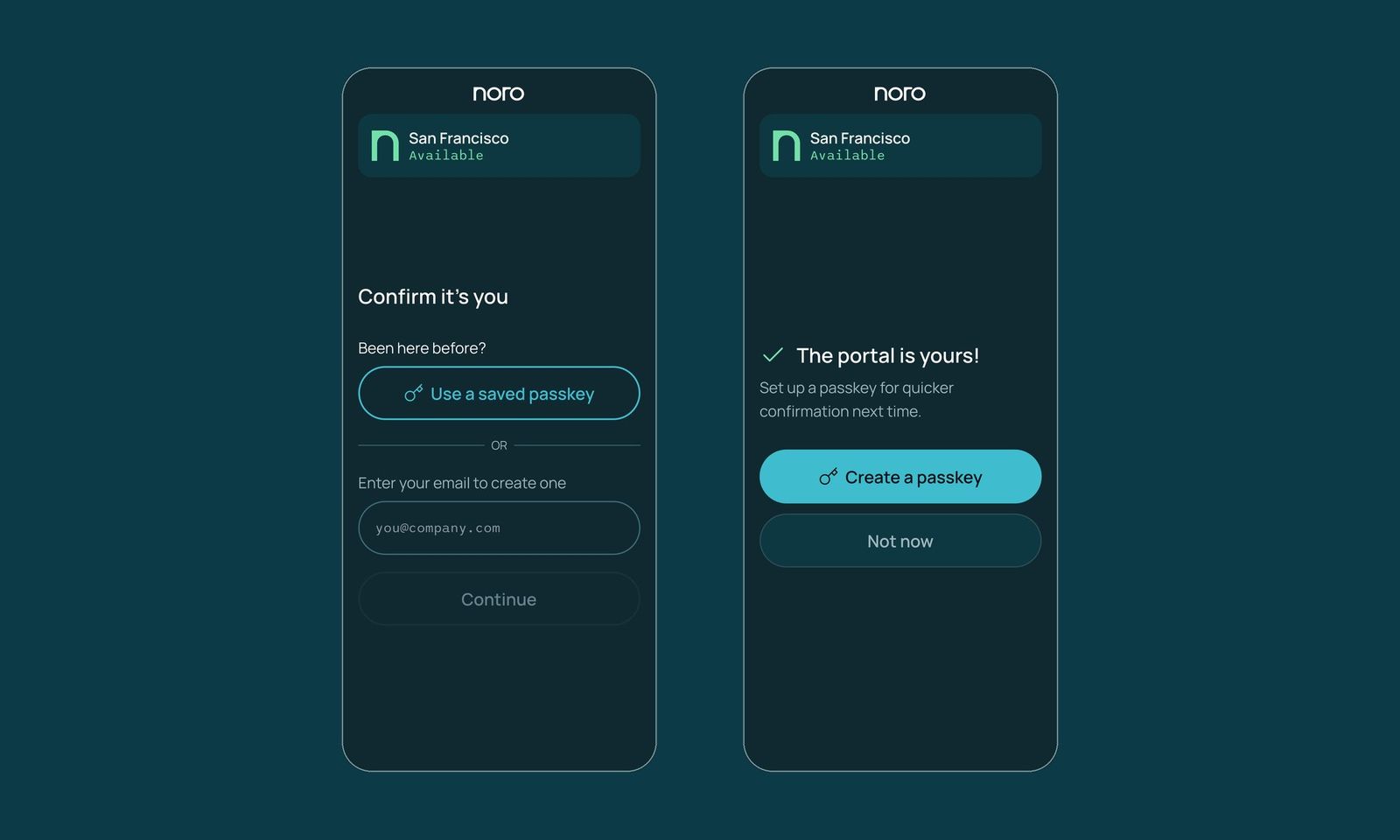
Where it's switched on, a portal asks who you are before it lets you control it. Scan the portal's QR code, tap Use a saved passkey, and confirm with whatever already unlocks your phone or laptop, such as your fingerprint or your face.
The sign-in screen names the portal you're about to control and shows its status. If you don't have a passkey yet, ask for a sign-in link by email and create one from there. The link works for 15 minutes.
- Your organization decides who can sign up, with a list of allowed email domains in Admin.
- You stay signed in until the end of the day, even if you close the tab.
- You get an email whenever a new device is added to your account.
Passkey sign-in is an early preview and it's still in active development, so expect it to keep changing.
More in Zoom calls (preview)
Portals in a Zoom call can now open the whiteboard, and you can cast your phone camera into the meeting, the same way you can in MS Teams.
The portal joins under its own name, shows a notice when recording starts or the host changes, and warns you before a free Zoom meeting reaches its time limit. In this release you join a Zoom meeting by pasting its link or meeting ID into the controller at the time of the call.
Also in this release
- In MS Teams calls, the first screenshare appears straight away.
- If the organization hosting an MS Teams meeting doesn't let guests join, the portal tells you why and what their IT team needs to change.
- Portal group rules now apply everywhere you can invite a portal, including during a call.
- A session ends when the last portal leaves it.
- A later booking on the same portal no longer stops you joining your call 30 minutes early.
- The whiteboard keeps its board when a connection ends, so reopening it brings you back to the same board.
- Portal updates no longer fail on slower portals.