
The Noro Portal
Walk up.
You’re there.
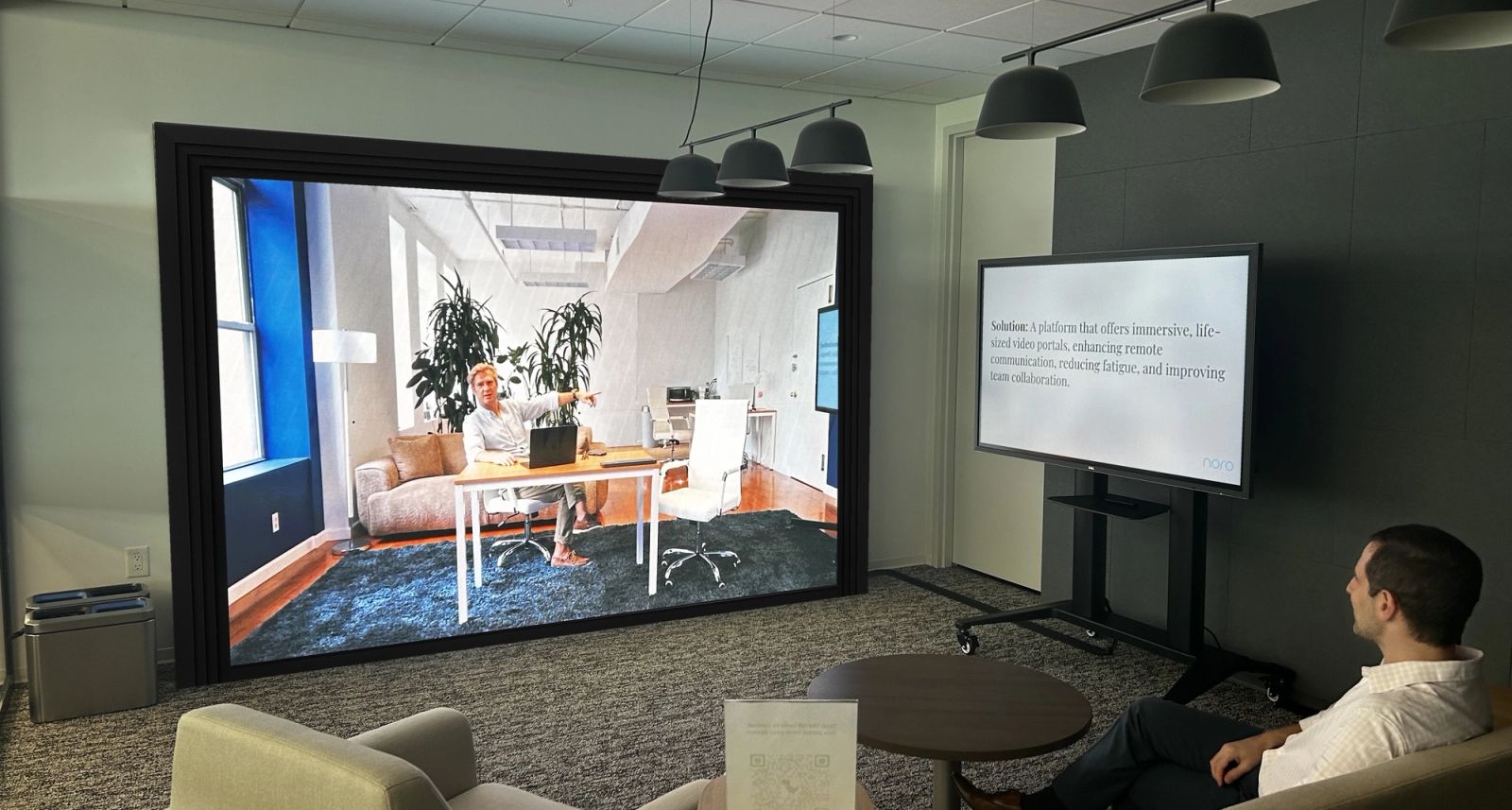
A life-size video portal for the meetings a call can’t hold: workshops, training, the creative work that needs people in one room. One in each office. Full-body, eye to eye, and one scan to connect.
01 Presence
As if in the same room.
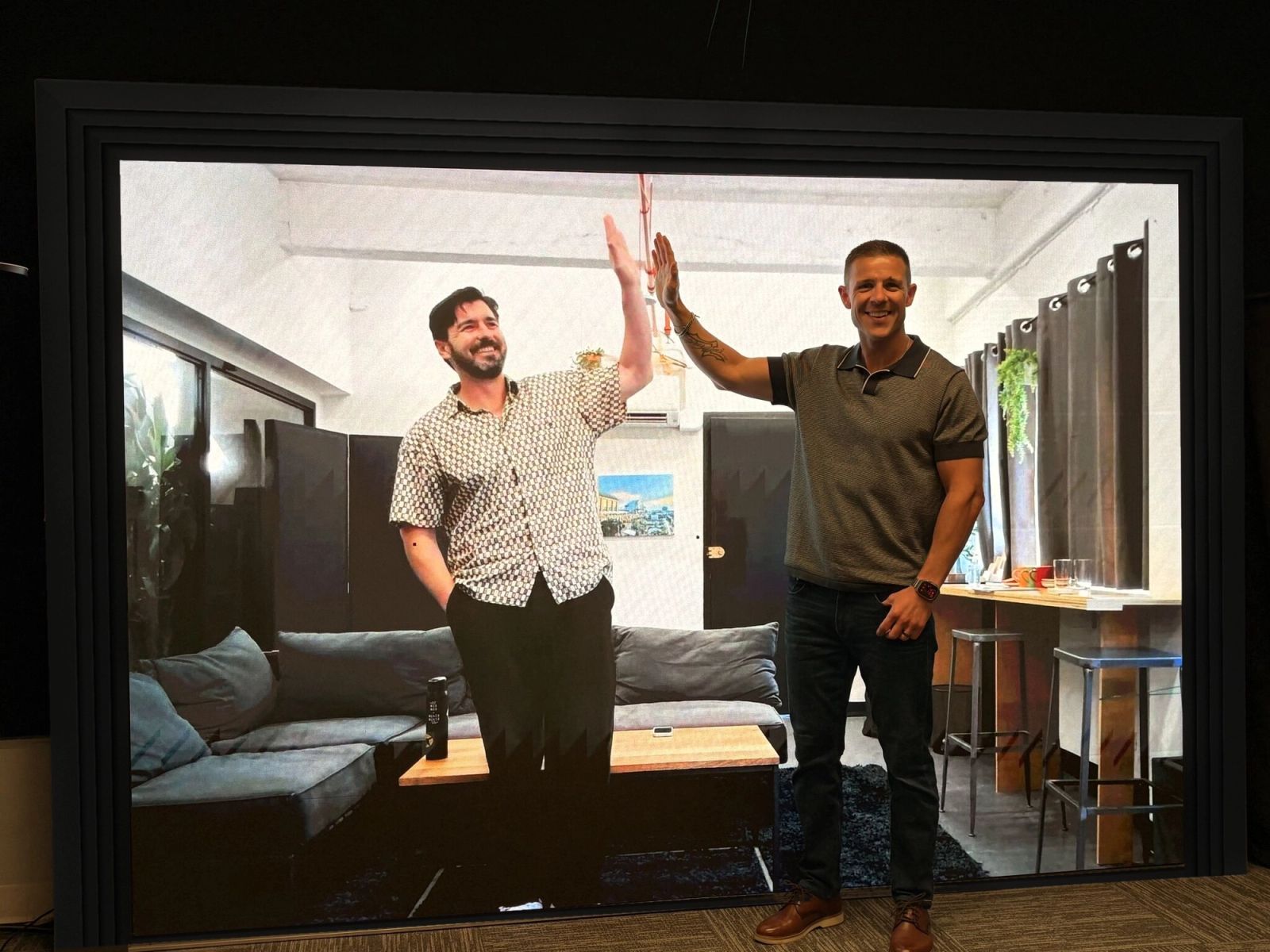
A 1:1 image, cameras at eye level and a screen the size of a doorway. People stand, gesture and hold eye contact the way they do across a table.
- Life-size
- Full-body at 1:1 scale. Body language, posture and the distance between people read the way they do in person.
- Eye contact
- Cameras sit at eye level behind the glass, so looking at someone means looking at them, not at a lens above the screen.
- One scan to connect
- Scan the code on the portal and the controls are on your phone. Start a booked session or instantly connect to other available portals with one tap. Nothing to install, nothing to plug in.
Presence in every call
Life-size in the calls you already have.
Paste a Teams, Zoom or Google Meet link and the portal joins as the room. In Teams and Zoom calls, you can invite other portals into the same meeting.


Booking
Book it like any meeting room.
Add the portal to an invite from Outlook or Google Calendar, the way you would add a room. The meeting goes on the portal’s schedule, ready to join.


The hardware
One unit. Two days to install.
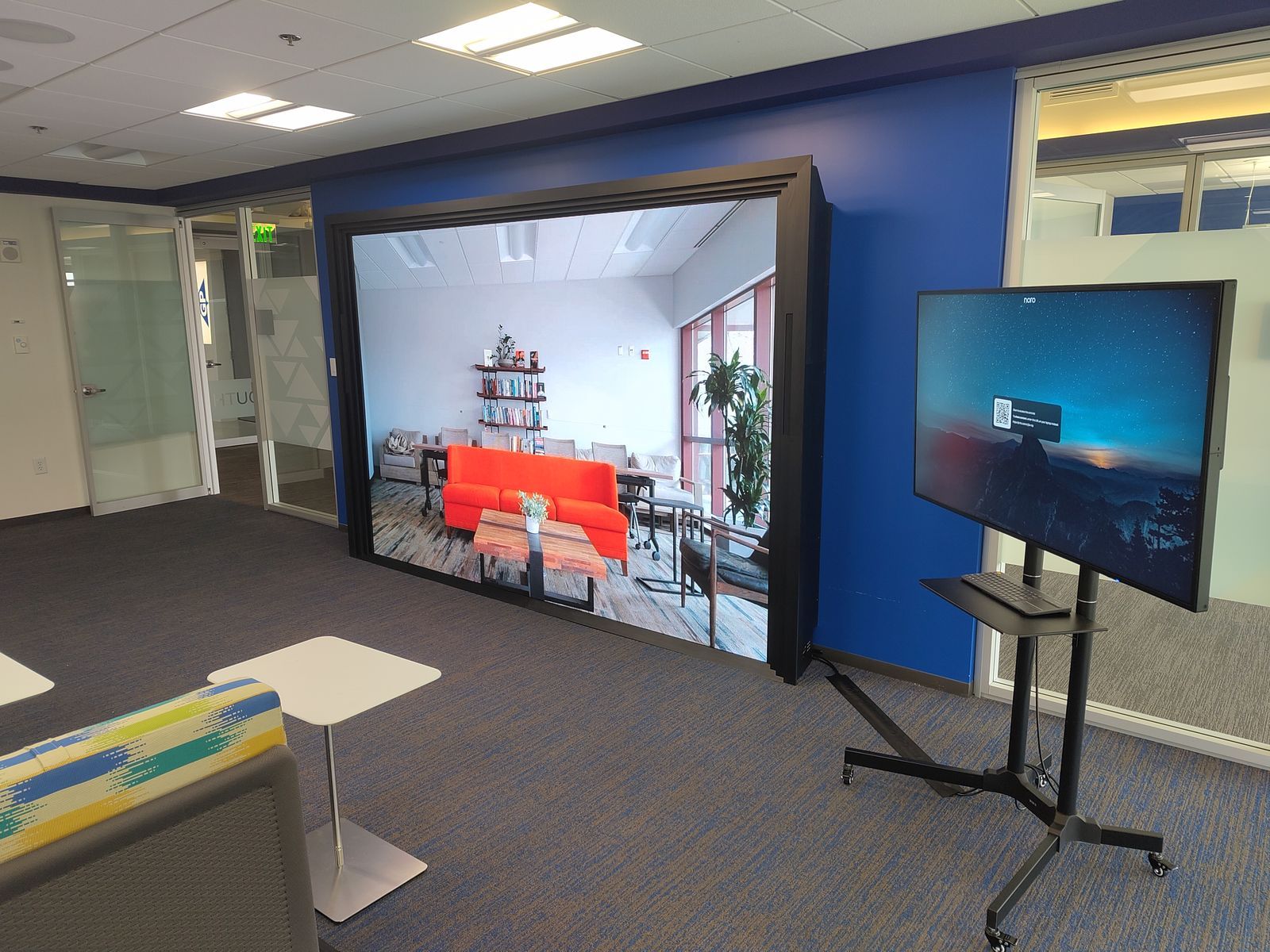
Screen, cameras, microphones and computer in a single piece. Noro installs it, checks its health remotely and updates it overnight. One in each office, ready to connect whenever you need.
- Height
- 2,200 mm (87 in)
- Width
- 3,370 mm (133 in)
- Depth
- 350 mm (14 in)
- Screen
- 142.5 in LED, 2400 × 1620 px
- Cameras
- 50 MP, 100° field of view
- Power
- 955 W average, two dedicated circuits
- Network
- 20-30 Mbps on a Gb Ethernet switch
- Install
- 1-2 days
02 Collaboration
Work side by side.
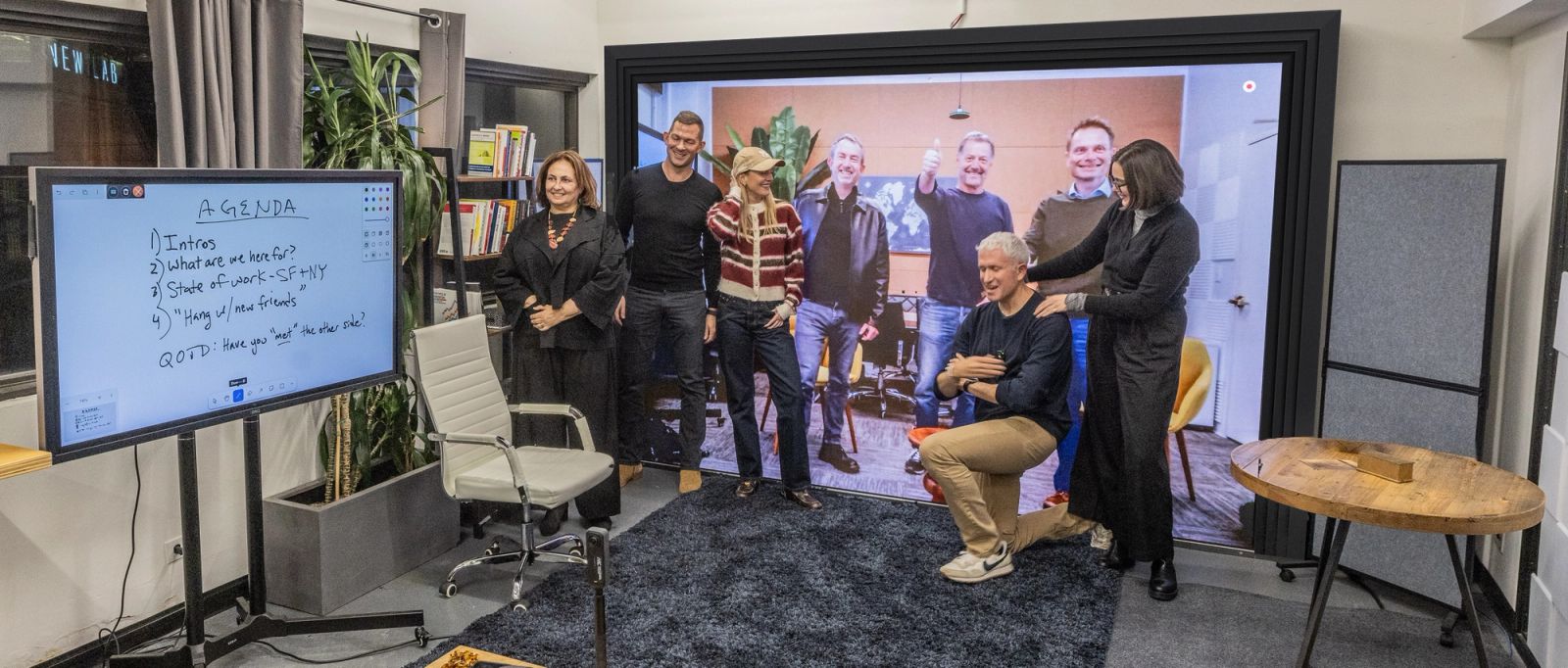
The portal keeps the other rooms in front of you, life-size. The companion screen beside it is where the work happens: whiteboard together, share a laptop screen, cast a phone camera, and include the people who are remote.
-
Whiteboarding
One canvas on the companion screen, everyone drawing on it. Sketch, annotate, move sticky notes. It stays with the project when the session ends.
-
Screen sharing
Share a laptop screen to the companion screen in every room, no cable.
-
Casting
Cast your phone camera to the companion screen to show a sketch, a sample or a prototype to everyone.
-
Remote participants
People who are remote join from a browser link and take part alongside everyone in the portals.
The controller
Your phone is the remote.
Scan the code on the portal and the controller opens in your browser. Nothing to install.
- Start the call
- Connect to another portal, or paste a Teams, Zoom or Google Meet link.
- Run it
- Mute the room, change the volume, see who’s in the call, turn on subtitles and end it when you’re done.
- Bring in the work
- Start a whiteboard, share a screen or cast your phone camera from the Collaborate tile.
The same controls are on the companion screen, in portals with a touchscreen.
11:55:50 left
Extend +30 min03 Meeting intelligence
Every session remembers.
You choose what each session keeps. What you capture adds to one shared record for the project: the transcript, the whiteboards, the documents you brought in and the decisions you made. Anyone on the project can ask it questions, during the session or weeks later.
- Capture
- Choose what each session keeps, from the controller or the companion screen: the transcript, the whiteboard or the recording. Noro always shows an indicator while capture is on.
- A shared memory per project
- Transcripts, whiteboards, documents and decisions from every session, kept together and shared only with the people working on that project.
- Ask Noro
- Ask out loud or by email. The answer comes from the project’s own record and lands on the companion screen or in your inbox.
- Proactive agents
- Ask what you need: a short brief as a late joiner, meeting minutes, a project status you can share, the action list.
Where it shows up
- On the portal
- Notifications and answers appear on screen during the session.
- Companion screen
- Briefs, transcripts and documents on the second screen.
- In the browser
- Remote participants, and the project record at noro.co.
- Your data, your place
- Hosted by Noro, or keep transcripts, documents and models on your own infrastructure.
Come see it in a portal near you.
Book a session in one of our rooms, or ask us to bring a portal to you. Or write to hello@noro.co.
Thank you. We'll be in touch.
We usually respond within one business day.
Product updates
What’s new on the portal.
-

5 November 2026
Run the call from the room
Run the call from the companion screen, get a recap in your inbox, and read live captions in your own language, in portal-to-portal, MS Teams and Zoom calls.
-

8 September 2026
Make the portal yours
Put your own image or video on the wall between calls, and try the early preview of passkey sign-in. Zoom calls also pick up the whiteboard and phone camera casting.
-

12 August 2026
More integrations, fewer surprises
Portals can join Zoom meetings in an early preview, you can book them from Google Calendar, and they now tell the people who manage them when something needs attention.