
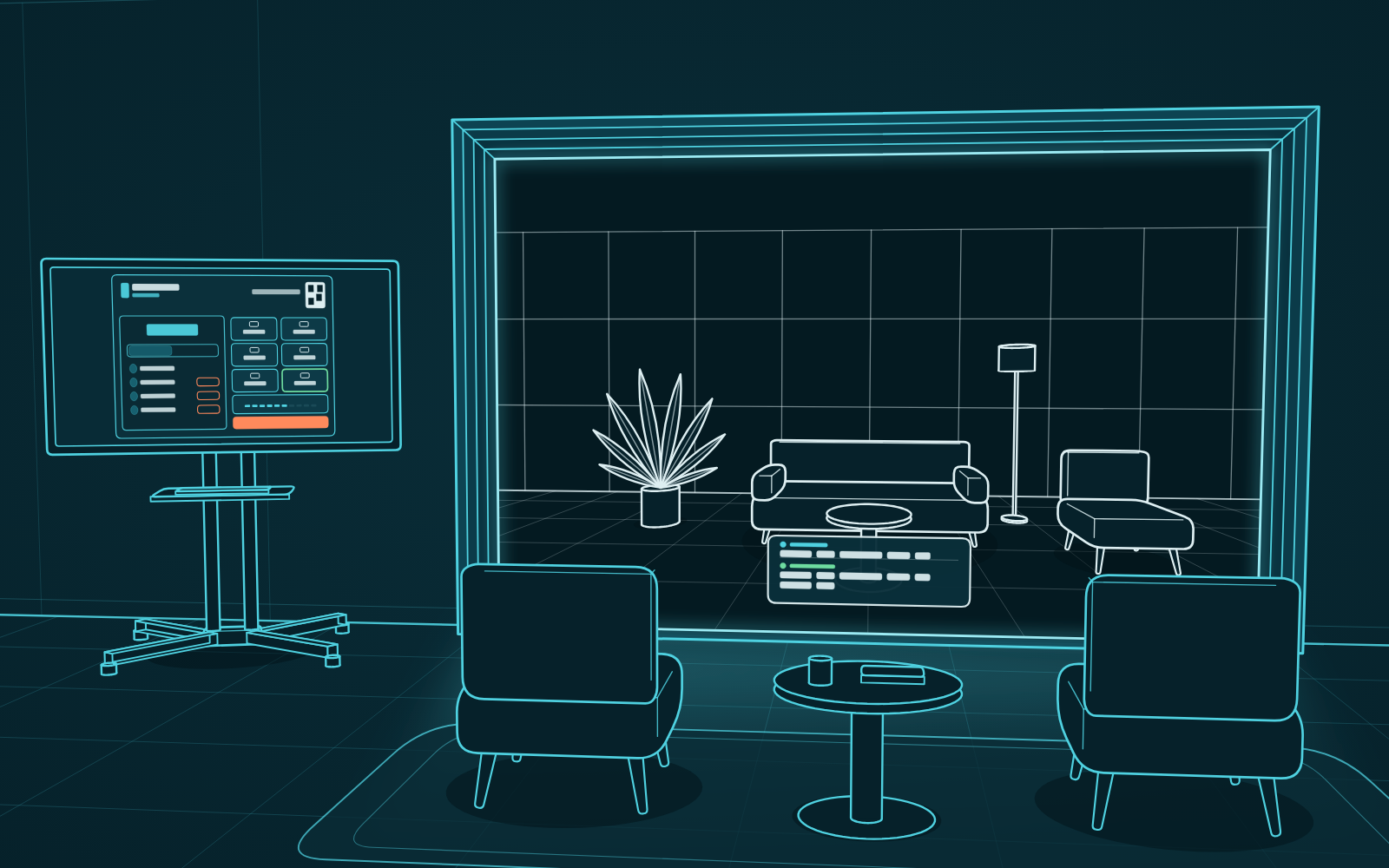
This update is built around the people in the room. Run the call from the companion screen, get a recap in your inbox, and read live captions in your own language, in portal-to-portal, MS Teams and Zoom calls. Try the early preview of People View, which gives everyone in the room their own tile in MS Teams or Zoom, and see what else is new, from Zoom booking to reliability fixes.
Control the call from the companion screen
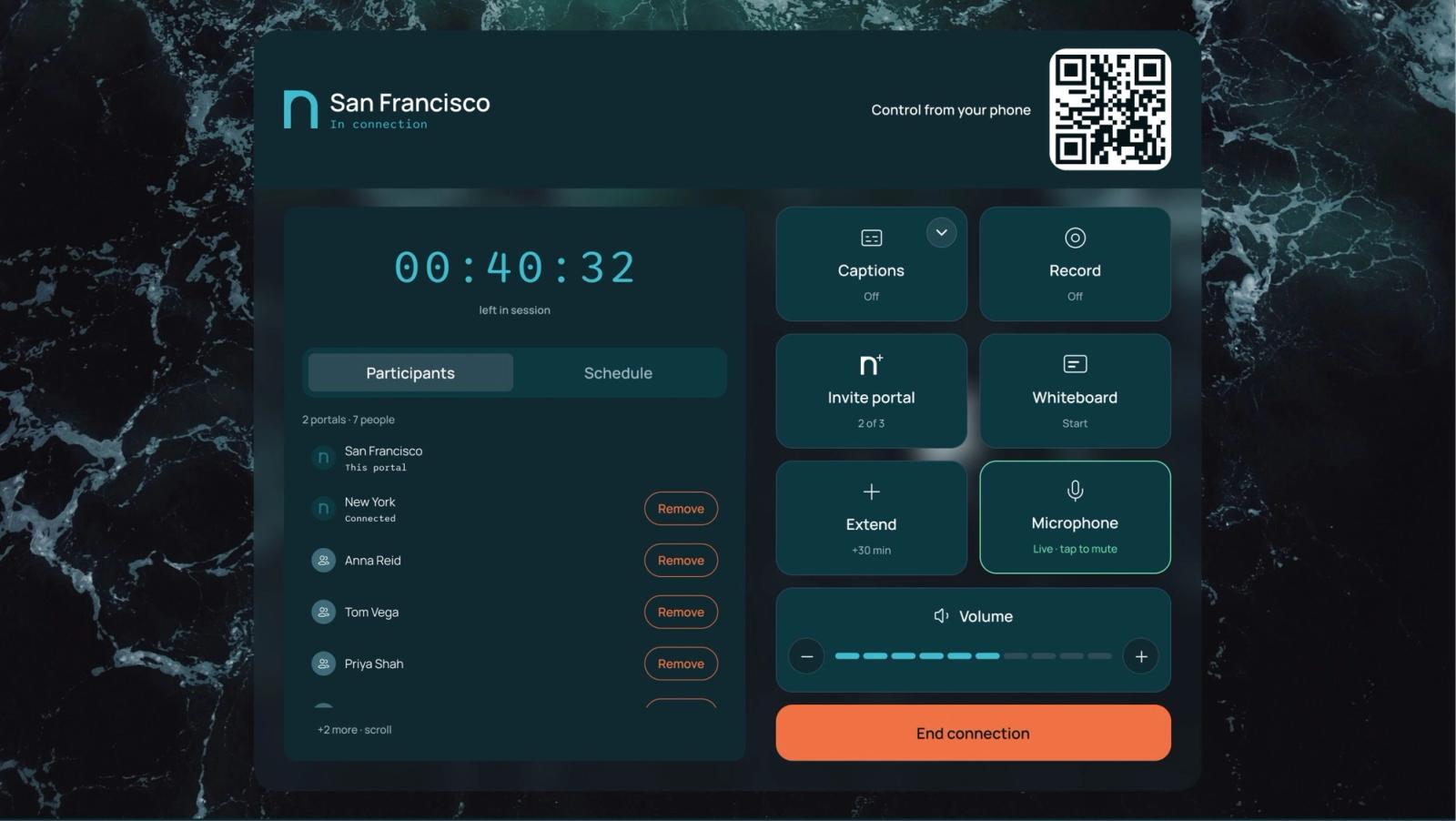
Once a call is running, anyone in the room can manage it from the companion screen. You don't need to find the controller or the person who started the call. This works in every connection: portal-to-portal, MS Teams and Zoom.
From the companion screen you can:
- Mute the room and change the volume.
- Start collaborating, for example on the whiteboard.
- Remove a participant or another portal from the call. You'll be asked to confirm first.
- End the call. You choose whether to end it for everyone or just disconnect your portal.
Companion screen controls are available on portals that have a touchscreen companion screen.
Get the meeting in your inbox
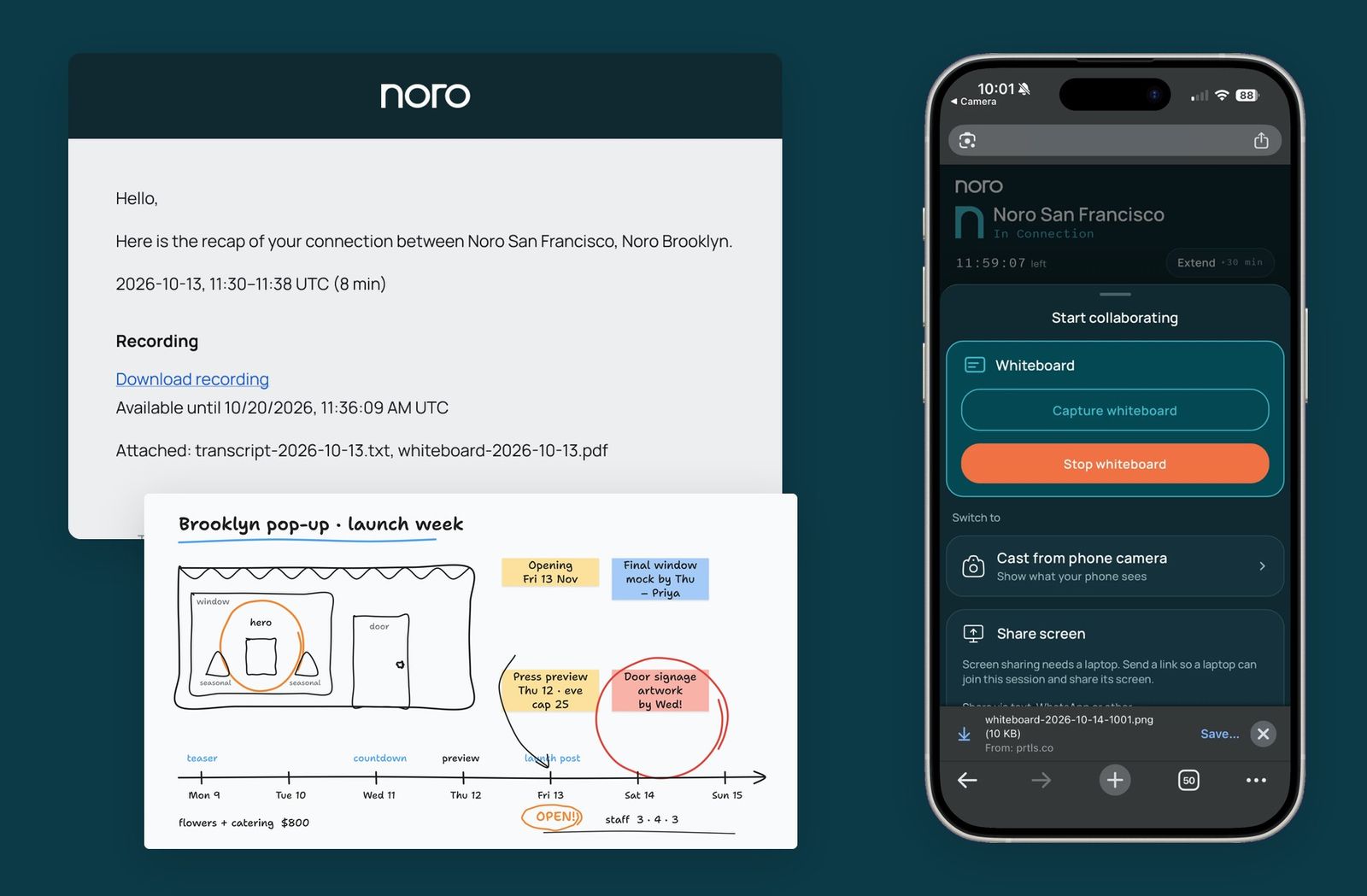
When a connection ends, the people in it get an email with three things: the transcript, the whiteboard as a PDF, and a link to the recording. Nobody has to take notes to know what was decided.
For a booked connection, the recap goes to the organizer and every guest on the invite. The recording link now stays valid for a week. You can also capture the whiteboard at any point during the call and keep a copy on your phone.
Recaps work for portal-to-portal, MS Teams and Zoom connections.
How we handle your data. Transcripts and whiteboards are deleted as soon as the recap has gone out. Recordings are deleted after seven days, unless your organization asks us to keep them. Guests who join from the web link can see when a call is being recorded.
Captions in your language
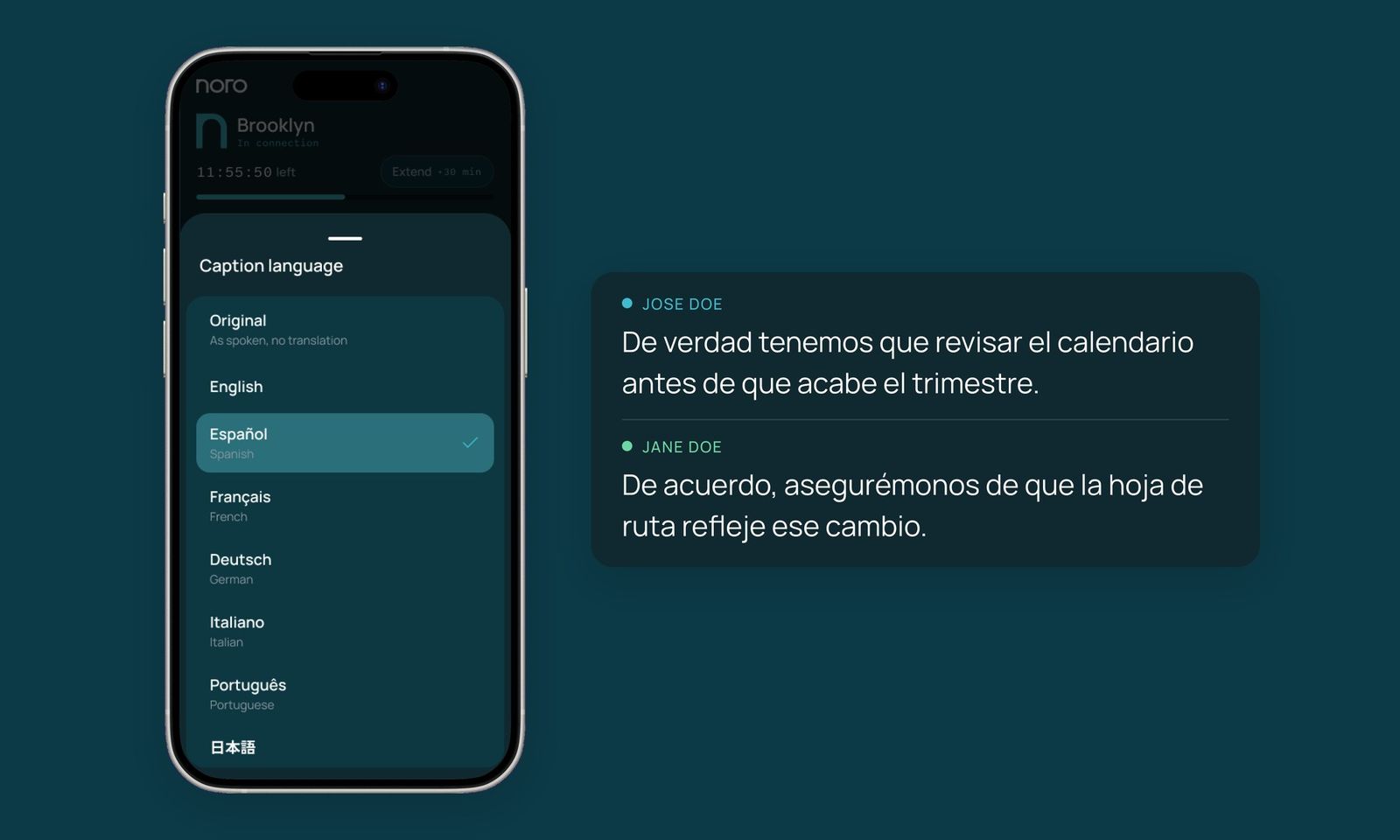
Live captions now appear on the wall in MS Teams and Zoom calls, just as they already did in portal-to-portal calls.
You don't need to tell the portal what language people are speaking. Captions detect it automatically across 10 languages: English, Spanish, French, German, Hindi, Russian, Portuguese, Japanese, Italian and Dutch. They keep up when someone switches language in the middle of a sentence.
Want to read the captions in a different language? Pick one from the Captions tile, and every line on the wall is translated into it. You can choose from 13 caption languages, including Turkish and Chinese.
People View mode for remote participants (patent pending)
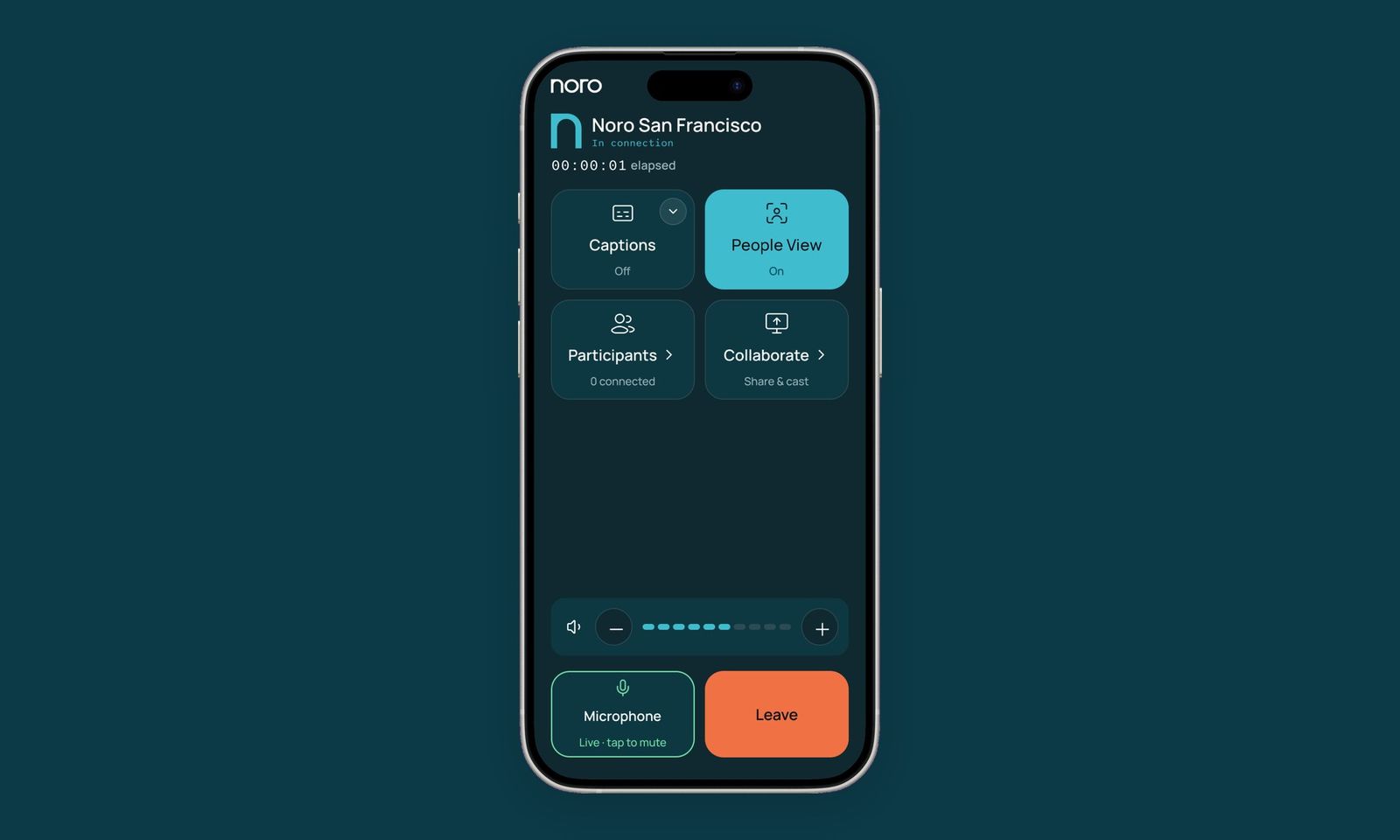
In any videoconferencing call, remote participants usually see the room as one wide shot. With People View turned on, that wide shot can become up to four separate tiles, one per person. Each tile follows its person as they move.
When people stand close together, they share a tile. That way a busy room still fits and nobody drops out of the picture.
You turn People View on for each call from the controller or the companion screen, and it switches off again when the call ends. Admins can tune the framing for each portal in Admin. This is a working preview and it's still in active development, so expect it to keep changing. We'd love to hear how it works in your rooms.
Also in this release
- You can book a portal into a Zoom meeting from a calendar invite, the same way you already can with MS Teams.
- Portals can invite other portals into live Zoom and MS Teams calls.
- MS Teams town halls and webinars are no longer booked by mistake. The organizer gets told why, so the booking isn't wasted.
- Portals stay responsive after being switched on for days.
- The controller is ready sooner after you scan the QR code.
- If a portal fails to join a call, it always tells you.
- Admins see fewer false health warnings, and an unplugged display is now reported as an error.
- A portal that's re-registered keeps the settings it already had.